
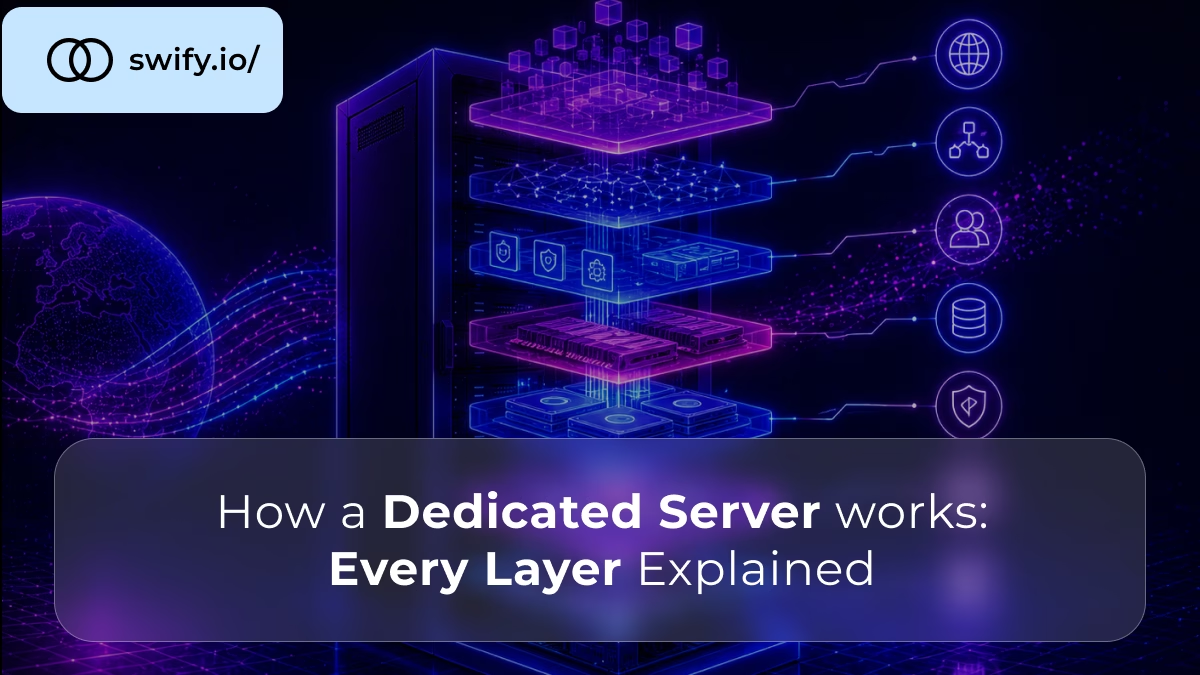
Understanding what a dedicated server is takes minutes. However, understanding how it actually works takes a little longer. This includes how a request travels from a browser to your hardware and back, what happens at each layer, and why the process differs fundamentally from shared hosting.
This guide explains every layer of a dedicated server, from the physical hardware in the datacenter to the operating system managing your applications, and from the network routing traffic to the monitoring systems keeping everything stable.
📖 New to dedicated servers?
If you have not yet read the foundational guide, start with What Is a Dedicated Server?, a complete introduction to what dedicated infrastructure is, how it compares to VPS and cloud, and when it makes sense for your business.
Layer 1 – The Physical Hardware
Every dedicated server starts as a real, physical machine. Unlike cloud infrastructure, where virtual machines float across pools of shared hardware, a dedicated server is a specific piece of equipment. It is a particular chassis, a particular CPU, and a particular set of drives. Furthermore, it is allocated to you and to no one else.
The CPU
The processor is the brain of the server. It executes every computation: PHP code running your web application, SQL queries scanning your database, encryption operations securing your traffic, background jobs processing your queues.
Dedicated servers use server-grade processors: Intel Xeon or AMD EPYC families, which are architecturally different from consumer processors. They support ECC memory, which detects and corrects memory errors before they cause corruption or crashes. Moreover, they are designed for continuous operation under sustained high load. Consumer chips, by contrast, are optimised for burst workloads.
The number of cores and the clock speed determine how much concurrent work the server can handle. More cores benefit workloads that parallelise well, web servers handling many simultaneous connections, databases processing concurrent queries, transcoding pipelines. Higher clock speeds benefit single-threaded tasks where sequential execution speed matters most.
RAM
Random access memory holds everything the server is actively working with. When your database receives a query, the relevant data moves from storage into RAM for processing. Similarly, when your web server handles a request, the PHP runtime and application code reside in RAM during execution.
The fundamental rule of server RAM is that more is always better, up to the point where your entire working dataset fits in memory. When it does, the server stops reading from disk and performance improves dramatically. When it does not, however, the server falls back to disk reads, which are orders of magnitude slower even on NVMe storage.
Storage
Storage is where your data lives permanently: the files, the databases, the logs, the application code. Three technologies are in common use on dedicated servers:
HDD – Traditional spinning drives with mechanical read heads. Although slow by modern standards, HDD is cost-effective for very large capacities where access speed is not the primary concern. Suitable for backup storage, archival data, and cold storage tiers.
SSD – Solid state drives with no moving parts, significantly faster than HDD for both sequential reads and random access. Suitable for most web hosting workloads and standard database configurations.
NVMe – The fastest storage technology available. NVMe drives connect directly to the CPU via PCIe lanes, rather than through the slower SATA interface. As a result, read and write speeds reach up to 7x faster than standard SSDs, with dramatically lower latency for random access operations. Essential for database-heavy applications and any workload where disk I/O is the performance bottleneck.
Network Interface Card
The network interface card (NIC) connects the server to the datacenter’s network infrastructure. Dedicated servers typically offer 1 Gbps or 10 Gbps ports.For a 1 Gbps port, the theoretical maximum throughput is 125 MB/s. This is sufficient for most web applications, but it becomes a limiting factor for streaming platforms and high-throughput APIs. Therefore, a 10 Gbps port removes network throughput as a bottleneck for all but the most demanding workloads.
📖 How does storage technology affect real-world performance?
Read How NVMe Storage Boosts Dedicated Server Performance, a detailed breakdown of how NVMe, SSD, and HDD differ in practice, and which workloads benefit most from each storage tier.
Layer 2 – The Datacenter Environment
The physical hardware does not exist in isolation, it lives inside a professionally managed datacenter that supplies everything the machine needs to run continuously and securely.
Power Infrastructure
Datacenters maintain multiple redundant power systems.The primary power feed connects to UPS systems. These provide instantaneous failover if the grid supply is interrupted. Behind the UPS systems, diesel generators can sustain full datacenter power for extended outages. Additionally, most enterprise datacenters maintain dual power feeds from separate grid substations. As a result, even a local grid failure does not affect availability.
This redundancy is why dedicated servers can offer 99.9% and 99.99% uptime SLAs, the infrastructure protecting the hardware is designed to eliminate single points of failure at every layer.
Cooling
Server CPUs under sustained load generate significant heat. Unchecked, heat throttles CPU performance and shortens component lifespan. Therefore, datacenters use precision cooling systems, including air conditioning units and hot aisle/cold aisle containment. In some facilities, liquid cooling is also used. These systems maintain stable temperatures regardless of workload or outside conditions.
Network Infrastructure
The datacenter connects to the internet through multiple high-capacity uplinks from different network providers, this redundancy means that a single carrier outage does not affect connectivity. Furthermore, most enterprise datacenters peer directly with major internet exchanges, reducing the number of network hops between your server and your users and consequently reducing latency.
Physical Security
Physical access to the hardware is controlled through multiple layers: biometric access systems, keycard entry, CCTV monitoring, and in many facilities, security personnel on site around the clock. This matters for compliance: GDPR, PCI-DSS, and ISO 27001 assessments all include questions about physical access controls.
📖 What does server uptime actually mean in practice?
Read Understanding Server Uptime, SLAs, and Reliability Metrics, a complete guide to reading SLA commitments critically and understanding what the numbers mean for your business.
Layer 3 – The Operating System
Once the hardware is provisioned and connected, an operating system is installed, either by the provider as part of the provisioning process, or by you via a remote installation process.
The operating system is the software layer that sits between the hardware and your applications. It manages every hardware resource: allocating CPU time to running processes, managing memory allocation, reading and writing to storage, and handling network communications.
Linux vs Windows Server
Most dedicated servers run Linux. The most common distributions for server use are Ubuntu LTS (favoured for its package availability and long support cycles), Debian (favoured for stability and minimal footprint), and CentOS/Rocky Linux (favoured in enterprise environments with RedHat tooling). Linux is open source, highly configurable, and has no licensing cost.
Windows Server is the appropriate choice for applications built on the Microsoft stack, ASP.NET applications, MSSQL databases, Active Directory integration, and Windows-specific software. It carries a licensing cost and is less common in general web hosting contexts.
Kernel Configuration
On a dedicated server, you have full control over the kernel, the core of the operating system. This means you can tune kernel parameters for your specific workload: adjusting network buffer sizes for high-throughput applications, configuring CPU scheduling policies for latency-sensitive workloads, or loading specific kernel modules your application requires. This level of control is not available on VPS environments, where the kernel is shared across all tenants on the host.
Layer 4 – The Application Stack
On top of the operating system, you install the software your applications need to run.
Web Server
The web server receives incoming HTTP and HTTPS requests and either serves static files directly or passes dynamic requests to the application runtime. The two dominant choices are:
Nginx – Event-driven architecture that handles thousands of concurrent connections efficiently with low memory consumption. Preferred for high-traffic applications and as a reverse proxy in front of application runtimes.
Apache – Process-based architecture with a mature ecosystem of modules. More flexible for complex per-directory configuration, widely used in shared hosting environments, and still common in production dedicated server deployments.
Application Runtime
The runtime executes your application code. For a PHP application, this means PHP-FPM, a process manager that maintains a pool of PHP worker processes ready to execute requests. For a Node.js application, this means the Node.js runtime. For Python, this means a WSGI or ASGI server like Gunicorn or Uvicorn.
On a dedicated server, you configure the runtime precisely for your workload, the number of worker processes, memory limits per process, execution timeouts, and error handling. This precision is not available on shared hosting and is constrained on VPS environments.
Database
The database stores your application’s persistent data. On a dedicated server, the database runs on the same machine as your application or, for production workloads, on a separate dedicated database server. The key advantage of dedicated infrastructure for databases is RAM: you can allocate generous amounts of memory to the database’s internal cache (MySQL’s InnoDB buffer pool, PostgreSQL’s shared_buffers), keeping your working dataset in memory and eliminating disk reads for the vast majority of queries.
📖 How do dedicated servers handle database-heavy workloads?
Read How Dedicated Servers Support Large Databases & Big Data, a practical guide to how dedicated infrastructure handles the specific demands of large databases and data-intensive applications.
Layer 5 – Network Routing and Traffic Flow
Understanding how a request travels from a user’s browser to your server and back is essential. It helps explain why network configuration matters for performance.
How a Request Reaches Your Server
When a user visits your website, the following sequence occurs. Each step adds latency, so understanding them matters:
DNS resolution – The user’s browser queries a DNS resolver for the IP address associated with your domain. The resolver returns the IP address of your dedicated server. This lookup typically takes 10–50 milliseconds and is cached for the duration of the DNS record’s TTL.
TCP connection – The browser establishes a TCP connection to your server’s IP address on port 80 (HTTP) or 443 (HTTPS). This involves a three-way handshake: SYN, SYN-ACK, and ACK. As a result, one network round trip of latency is added before any data transfers.
TLS handshake – For HTTPS connections, a TLS handshake follows the TCP connection. Modern TLS 1.3 reduces this to one additional round trip; older TLS versions required two.
HTTP request – The browser sends the HTTP request. The web server receives it, processes it (serving a static file or passing it to the application runtime for dynamic content), and sends the response.
Response delivery – The server sends the response in TCP segments. The browser reassembles them and begins rendering.
Why Server Location Affects Every Step
Every step in this sequence involves data travelling between the user’s device and your server. The further apart they are geographically, the more time each round trip takes. This is physical, data travels through fibre optic cables at roughly two-thirds the speed of light. Furthermore, every additional routing hop adds latency.
A server located in Frankfurt serving users in Berlin adds 5–10ms of network latency. The same server serving users in Tokyo adds 200–250ms. Therefore, for a complex page requiring multiple round trips, this difference compounds significantly.
📖 How does server location affect your site’s speed?
Read How Server Location Affects Website Speed, a detailed explanation of how geographic distance translates into latency, and how to choose the right datacenter location for your audience.
Layer 6 – Remote Access and Administration
Because the hardware sits in a datacenter rather than on your premises, you manage everything remotely. Therefore, there are two categories of remote access: in-band and out-of-band.
In-Band Access
In-band access happens over the same network interface the server uses for production traffic.
SSH (Secure Shell) is the standard method for Linux server administration.It provides an encrypted command-line interface to the server. Consequently, you can run any command, edit any file, install any software, and configure any service as if sitting at the machine’s keyboard. For security, SSH authentication should always use key-based rather than password-based authentication.
Remote Desktop Protocol (RDP) is the Windows equivalent, it provides a graphical desktop interface over an encrypted connection.
Out-of-Band Access
Out-of-band (OOB) access uses a separate network interface, typically a dedicated management controller (IPMI on Intel platforms, iDRAC on Dell, iLO on HP), that remains accessible even if the main server OS crashes or becomes unresponsive.
Through OOB access, you can reboot the server, access a console as if sitting in front of it, mount a remote ISO to reinstall the OS, and monitor hardware health metrics (CPU temperature, fan speeds, power consumption) independently of the running OS. This capability is essential for production servers where the ability to recover from a crashed OS without physical datacenter access is a reliability requirement.
Layer 7 – Security at the Server Level
A dedicated server’s security posture is entirely in your control. However, this is both a responsibility and an advantage.
Firewall
The firewall controls which network traffic reaches your server. On Linux, UFW (Uncomplicated Firewall) provides a simplified interface to iptables rules. Additionally, your provider may offer network-level firewall capabilities at the datacenter layer. These filter traffic before it reaches your machine.
A correctly configured firewall allows only the ports your services require. Typically, these are 22 (SSH), 80 (HTTP), and 443 (HTTPS). Everything else is blocked. Every unnecessary open port is an attack surface.
DDoS Protection
DDoS attacks attempt to overwhelm your server by flooding it with traffic from many sources simultaneously. Therefore, network-level DDoS mitigation, provided by the datacenter, scrubs malicious traffic before it reaches your server. Additionally, application-level rate limiting and WAF rules provide an extra layer of protection against application-layer attacks that bypass network-level filtering.
Physical Isolation Security Advantage
Because no other tenant’s processes run on your hardware, dedicated servers eliminate the cross-tenant attack surface. As a result, there is no shared CPU cache or shared memory bus. Furthermore, there is no hypervisor layer that could be exploited to access another tenant’s data.
📖 How to secure your dedicated server from day one
Read Dedicated Server Security Checklist: How to Harden Your Server After Setup, a phase-by-phase security guide covering SSH hardening, firewall configuration, WAF installation, and ongoing maintenance practices.
Layer 8 – Monitoring and Performance Management
Running a dedicated server without monitoring is operating blind. Without visibility into what the server is doing, you cannot identify bottlenecks before they affect users. Furthermore, you cannot predict when resources will run out or detect security incidents in time to respond.
What to Monitor
CPU utilisation – Sustained CPU above 80% indicates the server is approaching its processing limit. Identifying which processes consume the most CPU allows you to optimise or scale before performance degrades.
RAM usage and swap activity – When RAM is full, the OS uses swap space on disk as overflow. Swap activity on a production server is a serious warning sign. Disk swap is orders of magnitude slower than RAM. As a result, it causes severe performance degradation.
Disk I/O – High disk I/O wait indicates that processes are spending significant time waiting for storage operations to complete. This is a common bottleneck for database-heavy applications and a signal to evaluate storage configuration.
Network throughput and error rates – Sustained network utilisation above 80% of port capacity indicates bandwidth is becoming a constraint. Network errors indicate hardware or configuration issues.
Application response times – End-to-end response time monitoring reveals the user experience impact of any infrastructure issues. It also provides the baseline against which you measure performance improvements.
Monitoring Tools
Open-source tools like Netdata, Prometheus with Grafana, and Zabbix provide real-time visibility into all of the above metrics. Commercial tools like Datadog and New Relic add application-level tracing and longer-term analytics. Uptime monitoring services like UptimeRobot check your server from external locations and alert immediately if it becomes unreachable.
📖 Which monitoring tools should you use?
Read Best Tools to Monitor Dedicated Server Performance, a practical guide to the monitoring stack that gives you real-time visibility into CPU, RAM, disk, and network metrics from day one.
The Lifecycle of a Dedicated Server
Understanding how a dedicated server works also means understanding how it evolves over time. A server does not just get provisioned and run unchanged, it goes through a lifecycle that requires active management.
Provisioning – The provider installs the hardware, connects it to the datacenter network, and makes it accessible. Depending on the provider, this can take hours or days.
Initial configuration – You install the OS and configure the network settings. Then you set up SSH access and implement the baseline security hardening covered in the security checklist.
Application deployment – You install and configure your web server, application runtime, database, and any additional services your application requires.
Optimisation – As the server runs under real workload, you identify bottlenecks and tune configuration. This includes adjusting PHP-FPM worker counts, optimising MySQL buffer pool size, and configuring caching layers. Additionally, kernel networking parameters may need tuning.
Ongoing maintenance – Security patches, software updates, log rotation, backup verification, and capacity planning. A production dedicated server requires regular maintenance to remain secure and performant.
Hardware upgrades or migration – When the workload outgrows the current hardware, you have two options. You can upgrade components such as RAM, NVMe drives, or CPUs where the chassis supports it. Alternatively, you migrate to a new server with higher specifications.
📖 Planning a migration to a dedicated server?
Read Dedicated Server Migration Checklist: How to Move Without Downtime, a complete phase-by-phase guide covering every step from environment audit to post-migration monitoring.
Putting It All Together
A dedicated server combines exclusive physical hardware, enterprise datacenter infrastructure, and a fully configurable OS. Together, these layers form a single, consistent hosting platform.
When a user’s browser sends a request, it travels through the internet to your server’s IP address. It then passes through the datacenter’s network, reaches your NIC, and is processed by the OS. From there, the web server handles it, the application runtime executes it, and the database responds. The full round trip completes in milliseconds.
Every layer of this process is yours to configure, optimise, and control. That is what makes a dedicated server fundamentally different from any shared hosting environment. It is therefore the infrastructure of choice for workloads where performance, security, and reliability are non-negotiable.
Ready to Run Your Infrastructure on Dedicated Hardware?
Swify’s dedicated servers give you full hardware control, European datacenters, and transparent pricing, the complete infrastructure stack you just read about, ready to deploy.
→ Explore Swify Dedicated Server PlansFrequently Asked Questions
What is the difference between in-band and out-of-band server access?
In-band access uses the server’s main network interface: SSH for Linux, RDP for Windows, and works when the OS is running normally. Out-of-band access uses a separate management controller (IPMI, iDRAC, or iLO) that remains accessible even if the OS crashes. Through out-of-band access, you can reboot the server, access a console, reinstall the OS, and monitor hardware health without needing to be physically present at the datacenter, an essential capability for production infrastructure.
Why does server location affect website performance?
Every network round trip between a user’s browser and your server takes time proportional to the physical distance the data must travel. A request from Berlin to a server in Frankfurt might add 5ms of latency; the same request to a server in Singapore adds 200ms. For a complex page requiring multiple round trips, these differences compound significantly and directly affect Time to First Byte, a metric Google uses in Core Web Vitals. Read How Server Location Affects Website Speed for a full breakdown.
What happens when a dedicated server crashes?
A server crash typically means either the OS has become unresponsive (a kernel panic, for example) or the hardware has failed. For OS crashes, out-of-band access allows you to perform a hard reboot and access the console to diagnose what went wrong. For hardware failures, the provider is responsible for replacing the affected component — a key advantage of renting dedicated infrastructure over colocation, where hardware failures are your own problem to resolve. Read What Happens When a Server Crashes? for a detailed look at failure scenarios and recovery paths.
How does a dedicated server handle high traffic?
Under high traffic, a dedicated server’s performance is determined entirely by its own hardware configuration: CPU core count, RAM, storage throughput, and network port speed. Unlike shared hosting or VPS environments, there is no resource contention from other tenants. The server processes as many concurrent requests as its hardware and software configuration allow, without performance degradation caused by others. Additionally, load balancing across multiple dedicated servers allows horizontal scaling beyond what a single machine can handle. Read Understanding Server Load: How Dedicated Servers Handle High Traffic for a detailed explanation.
What is the difference between managed and unmanaged dedicated hosting?
With unmanaged hosting, the provider maintains the physical hardware and datacenter infrastructure, while you are responsible for everything from the OS upward: installation, configuration, security, updates, and monitoring. With managed hosting, the provider takes on some or all of those responsibilities, typically including OS updates, security patching, and basic monitoring. The right choice depends on your team’s Linux administration capacity and how much of the infrastructure management you want to handle internally. Read Managed vs Unmanaged Hosting Explained for a full breakdown of both models.
How do I choose the right hardware configuration for my workload?
Start by auditing your current resource usage: peak CPU utilisation, average and peak RAM consumption, disk I/O rates, and bandwidth usage. Then provision a dedicated server that exceeds those peaks with room for at least 12 months of growth. For CPU-intensive workloads, prioritise core count. For database-heavy applications, prioritise RAM. For I/O-intensive workloads, prioritise NVMe storage. For bandwidth-intensive applications like streaming or high-traffic APIs, prioritise the network port speed. Read How to Choose the Best Hardware for Your Dedicated Server for a complete hardware selection guide.